
Linux has good security built in. But it does not hide your traffic. Your internet provider, the router in the café, and the websites you visit can still see where you go online. To fix that, you need a few things: an updated system, a firewall, encrypted DNS, and a VPN you trust. For Ubuntu and similar distributions, every step is covered. It uses VPNOverview’s testing to help you decide whether a free VPN for Ubuntu is enough or a paid plan is worth it.
What Linux Protects and What It Does Not
Linux is safer, has freely available source code, and has fast patches. Those features protect the device from attack but leave open the URL to an unsafe website. A VPN encrypts your data as it travels between your machine and the server. A VPN is just one layer of protection and not a replacement for anything else.
Lock Down the System First
Before you add privacy tools, fix some of the basic issues.
- Keep packages current. Ubuntu Server installs security updates automatically via unattended-upgrades, as described in Ubuntu automatic updates. On the desktop, check your update settings and run sudo apt update & sudo apt upgrade periodically.
- Turn on the firewall. Ubuntu comes with ufw, but the firewall guide suggests that it is disabled by default. Run sudo ufw default deny incoming, sudo ufw enable, and confirm with sudo ufw status verbose.
- Remove what you do not use, clear old services, and close any ports you cannot explain.
- Use unique passwords. A password manager protects every account that the VPN cannot.
Where a VPN Actually Helps
You’ll lose trust in your internet provider to the VPN company. Electronic Frontier Foundation warns in its guide to choosing a VPN that many providers exaggerate their services. A VPN won’t protect you from malware or make you anonymous.
But it can help you when using public Wi-Fi, if you don’t trust your internet provider, and when using websites that track your IP address. Look for a VPN that has no logs policies, is checked by others, and has a kill switch to prevent you from connecting if the VPN doesn’t work.
What VPNOverview Found About Free Linux VPNs
VPNOverview tested more than 20 providers for its Linux guide. It scored them on Linux support, no-logs policies, speed, and security features. Its writer warns that most free VPNs have no dedicated Linux app and are generally not recommended. Still, the guide names four free services worth a look:
| Provider | Data allowance | Worth knowing |
|---|---|---|
| Proton VPN | Unlimited data & bandwidth | Native Ubuntu GUI, 10 free server locations, one device at a time |
| PrivadoVPN | 10 GB per month | Fast WireGuard speeds, no independent audit yet |
| Windscribe | 10 GB with a confirmed email, 2 GB without | Command-line app, no device limit, Ubuntu install guide |
| hide.me | Unlimited | Open-source command-line client, wide distro support |
VPNOverview lists Proton VPN as one of the best free VPNs available. It offers unlimited data, no-logs policy, kill switch, and DNS leak protection. But, the free VPN only features servers in 10 locations, and it does not automatically unblock streaming sites. If you need to stream more, VPNOverview recommends using a paid VPN with a money-back guarantee instead.
Set Up Your Chosen VPN on Ubuntu
You have two ways to go. The easiest is the provider’s native app, which takes care of the tunnel, kill switch, and server list for you. VPN Proton and Windscribe both have Ubuntu clients, and VPNOverview walks you through the Proton repository setup, step by step.
The manual route uses OpenVPN. Install it with sudo apt install openvpn , download your provider’s .ovpn configuration files, and import them into your network settings. Some providers issue separate OpenVPN credentials, so check your account page before entering your regular login.
Then test it. Visit a leak-test site such as ipleak.net with the VPN on, as VPNOverview did, and confirm your real IP address and DNS servers don’t appear.
Encrypt Your DNS Queries
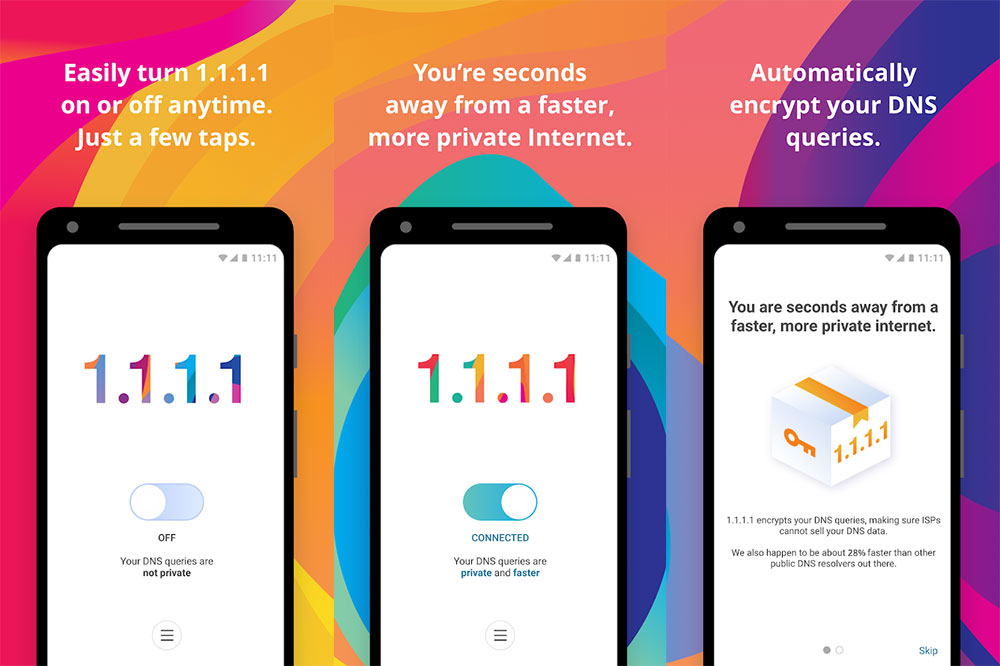
Every site query in DNS is by default unencrypted to your ISP’s resolver. Ubuntu uses systemd-resolved, which supports DNS over TLS. Edit /etc/systemd/resolved.conf , set a resolver you trust under DNS= , add DNSOverTLS=yes , then restart the service with sudo systemctl restart systemd-resolved . If you are using a VPN, your provider will handle the DNS for you, so check again after you’ve failed that nothing leaks out of the tunnel.
Free VPNs to Avoid
Free often means you pay with your data. VPNOverview flags SecurityKISS for bad anti-logging policy and outdated PPTP protocol. It says that VPNBook logs IP addresses and time stamps. If a service doesn’t explain how it makes money, assume you are the product.
Make it a Routine
You need to care for Linux security regularly. That is to say, do an update every week. Check open ports every month. Test your VPN for leaks after big updates. These little tweaks are better than one big update. Settings and free limits can change. Just start with your firewall and updates. Then, choose a VPN that works well for you. You can also read the free VPN guide from VPNOverview before you pick a provider.